← Main Guide ← Retrospective nav F fullscreen
Capstone · Week 2

Services Week

Windows DNS/DHCP/IIS + Linux NGINX/MariaDB on a segmented, NAT-bridged network.

0

Verify network

1

Windows services

2

Linux services

3

Cross-VM tests

Foundation from Week 1: ML350p Gen8 · Proxmox VE 8.2.2 live at https://10.10.10.10:8006

Verification snapshot 2026-05-05 → week2-verification.html

Where we actually are · 2026-05-05

Current verified build state

✅ Done (Week 1 + early Week 2)

  • Proxmox host tctmachine · vmbr0/1/2 all UP
  • pfSense2 (VM 103) routing both internal subnets · DHCP + DNS + auto-NAT
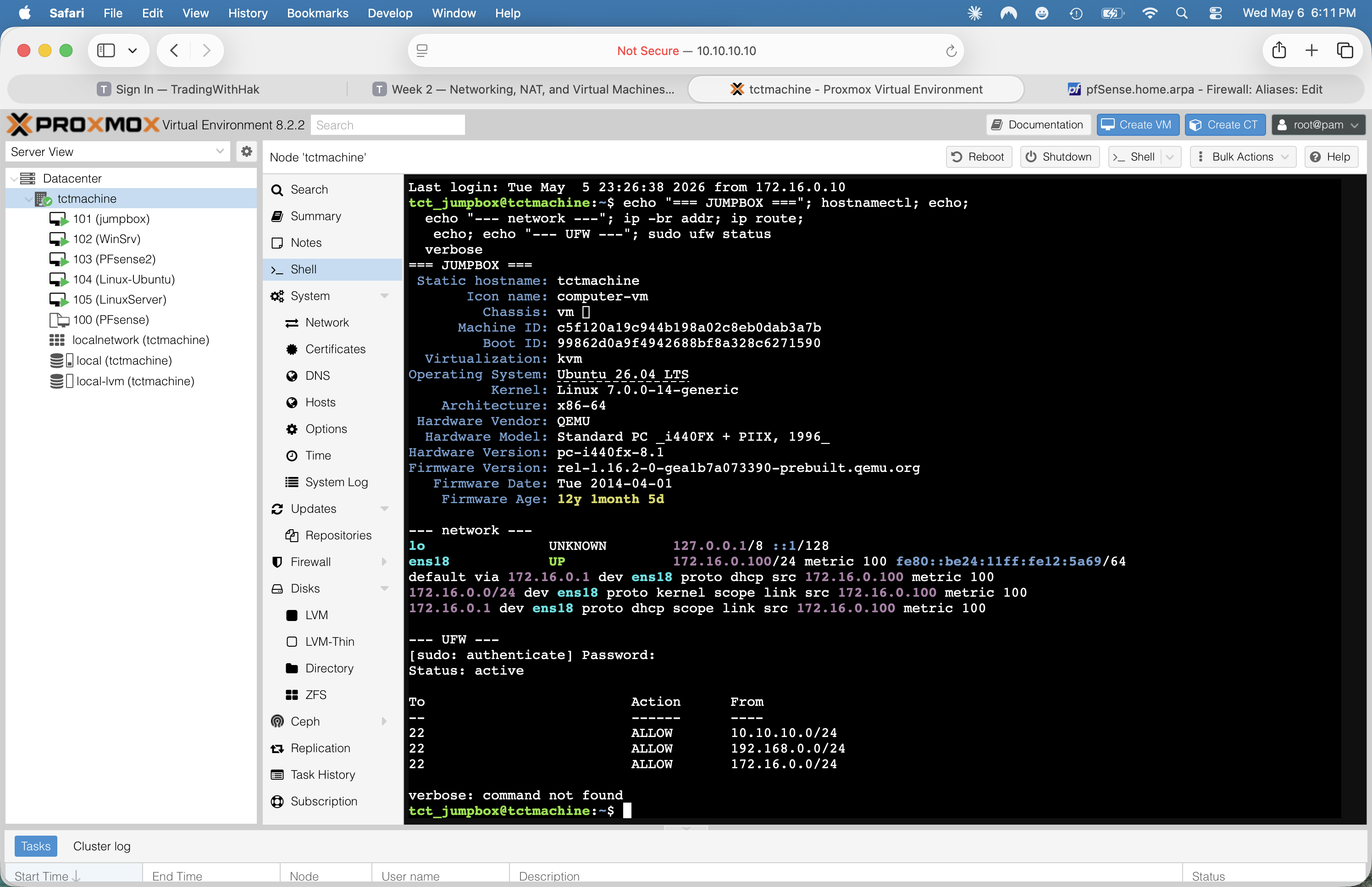
  • Jumpbox (VM 101) Ubuntu 26.04 on DMZ · UFW configured · internet OK
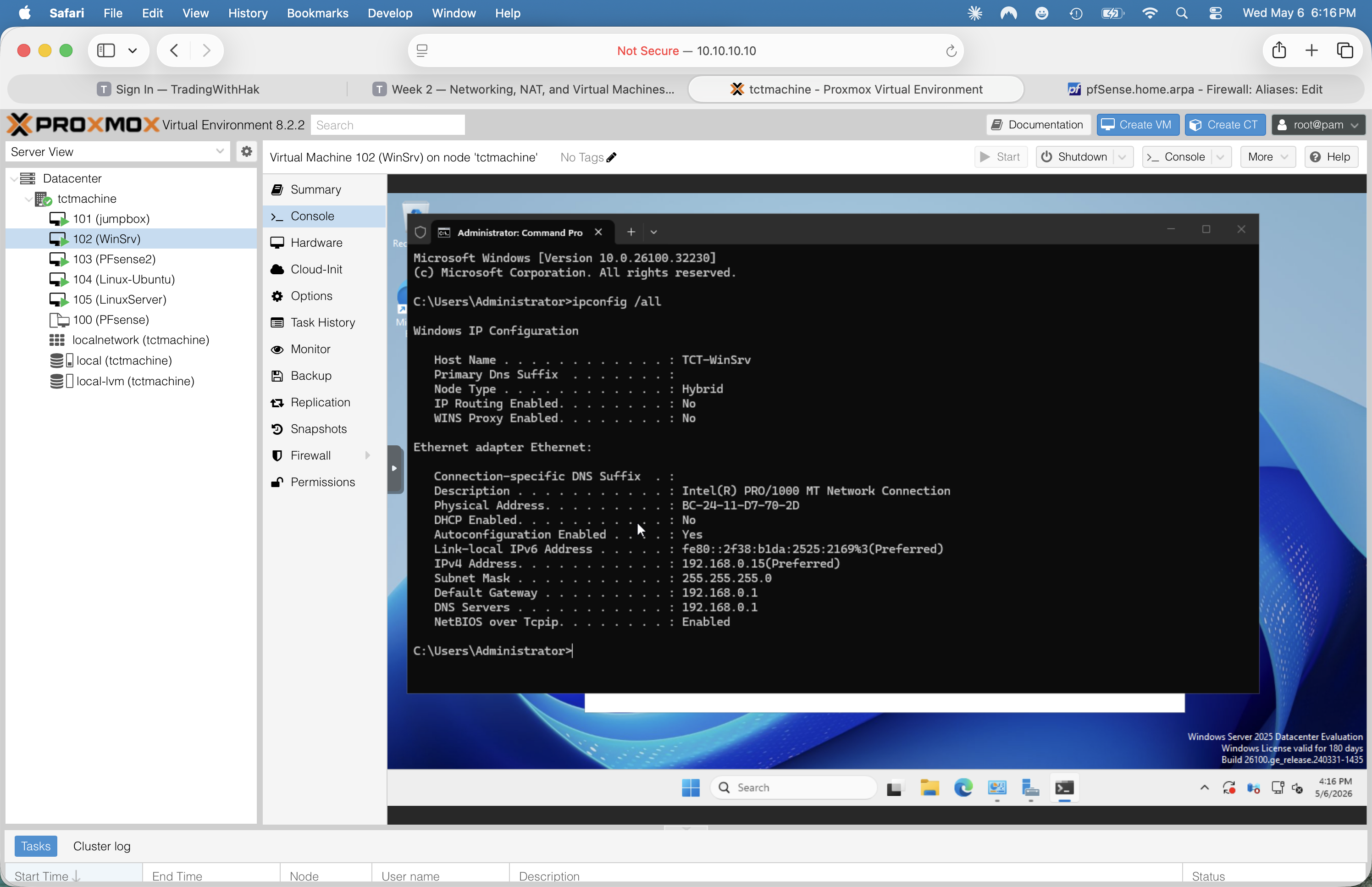
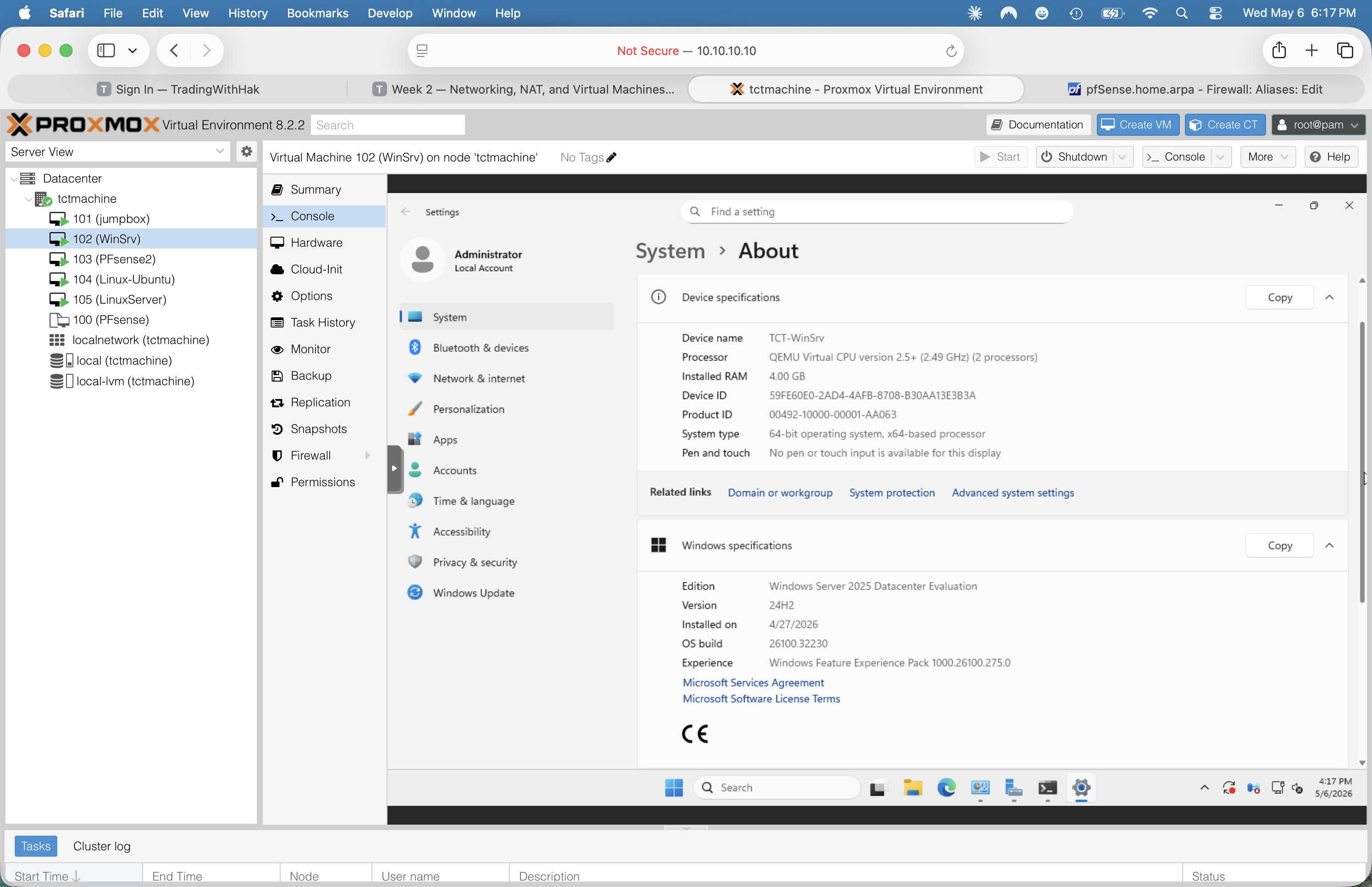
  • WinSrv (VM 102) Win Srv 2025 Eval · static 192.168.0.15
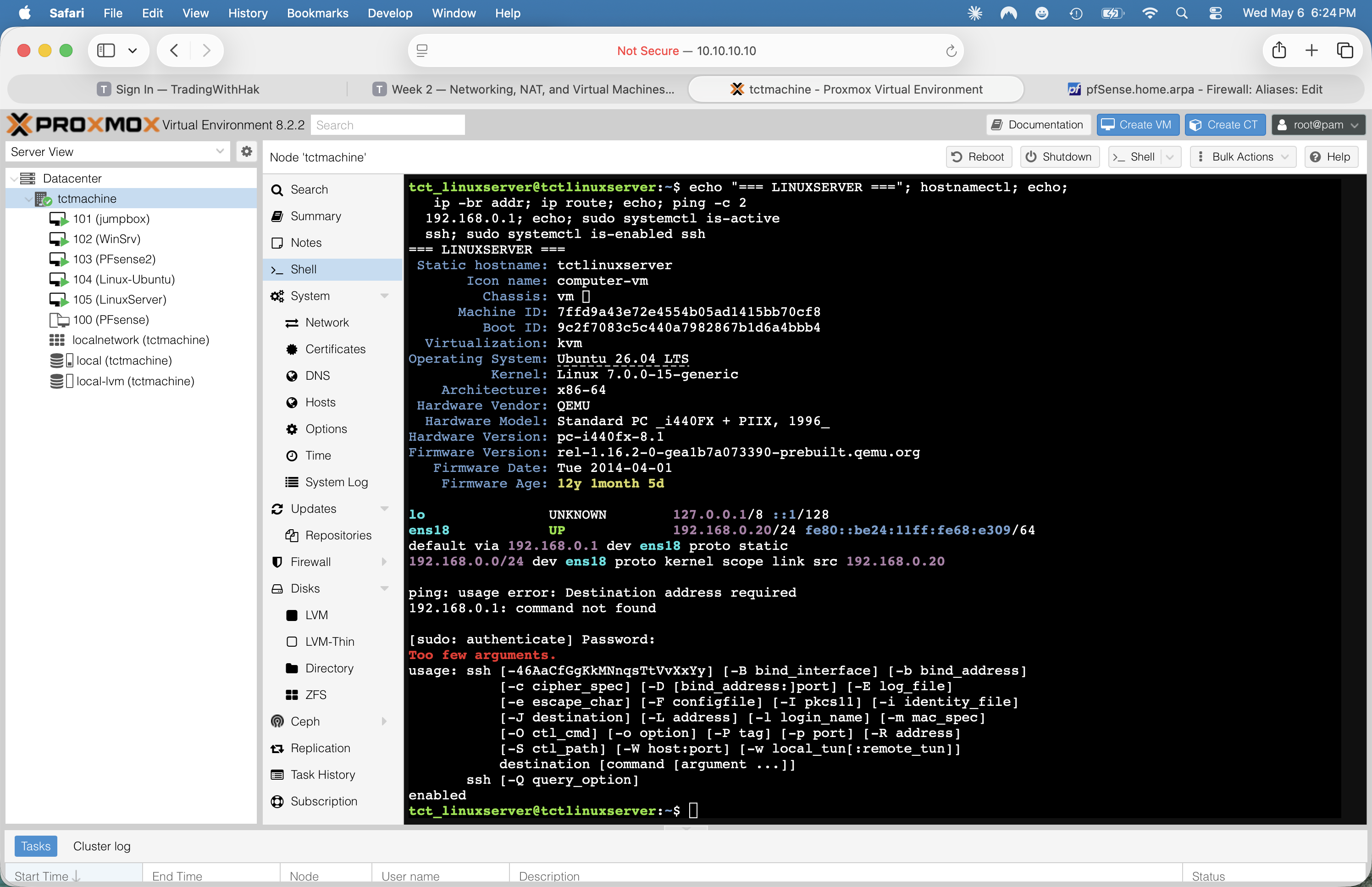
  • LinuxServer (VM 105) Ubuntu 26.04 · static 192.168.0.20 · SSH up
  • LAN firewall hardened (9-rule defense-in-depth) — Week 3 evidence

📋 What this deck still covers

  • Phase 1 — Windows: install DNS / DHCP / IIS · create A record · publish welcome page
  • Phase 2 — Linux: install NGINX · publish welcome page · install MariaDB + create DB
  • Phase 3 — Cross-VM tests · ping matrix · DNS lookups · screenshots

DHCP coordination: pfSense2 currently serves DHCP for 192.168.0.0/24 (pool .100–.200). Before activating Windows DHCP, either (a) disable pfSense LAN DHCP, or (b) split the pool so the two don't overlap. Don't run two DHCP servers on the same broadcast domain.

Overview

What you're building this week

🎯 Objective

Prove the internal network works via the NAT bridge and Jump Box, then stand up the core services both teams depend on downstream.

By Friday, any VM should be able to:

  • Resolve winserver.teamx.local via your own DNS
  • Lease an IP from your DHCP scope
  • Browse the Windows IIS welcome page
  • Browse the Linux NGINX welcome page
  • Query the MariaDB capstone_db from CLI

📋 Grading watch-outs

  • Every phase needs screenshots — save as you go, not at the end
  • Ping results + latencies go in the table — "it works" isn't enough
  • Export asset-tracker snapshot with VM names, IPs, roles
  • Two reflection sentences each on: trickiest test, longest service, unresolved issues
  • Cover page with week #, team, and roles
Team

Role assignments

📋 Team Lead

  • Coordinate the other three
  • Save & log all screenshots
  • Asset-tracker snapshot (VMs · IPs · roles)
  • Assemble final report

🌐 Networking

  • Phase 0: NAT bridge + Jump Box tests
  • Phase 3: cross-VM ping & DNS lookups
  • Verify DHCP leases actually issue
  • Fill every ping/lookup row

🪟 Windows

  • Install DNS role + zone + A record
  • Install DHCP role + scope
  • Install IIS + deploy welcome page
  • Screenshots of each

🐧 Linux

  • Install + enable NGINX
  • Deploy Linux welcome page
  • Install MariaDB + create DB/user
  • Test query from CLI
Three-zone topology · pfSense2-routed

Locked Week 2 IP plan

Subnets & gateways

ZoneCIDRGateway
School LAN10.10.0.0/1610.10.10.1
DMZ (vmbr1)172.16.0.0/24172.16.0.1 (pfSense)
LAN (vmbr2)192.168.0.0/24192.168.0.1 (pfSense)

pfSense2 (VM 103) sits on all three bridges: WAN 10.10.110.10, DMZ .1, LAN .1. It does NAT, DHCP, and DNS resolution (Unbound + DNSSEC).

VM IP assignments — live state

VMIPRole
WinSrv (102)192.168.0.15 staticDNS · DHCP · IIS · AD
LinuxServer (105)192.168.0.20 staticNGINX · MariaDB
Jumpbox (101)172.16.0.100 DHCPSSH gateway · DMZ
pfSense LAN DHCP scope192.168.0.100 – 192.168.0.200
pfSense DMZ DHCP scope172.16.0.100 – 172.16.0.200

⚠ Statics .2–.99 and .201–.254 are safe — outside the DHCP pool.

The big picture · pfSense2-routed

What we're building — visual topology

☁️ School LAN 10.10.0.0/16 🛡️ pfSense2 (VM 103) DNS · DHCP · Firewall · NAT WAN 10.10.110.10 DMZ 172.16.0.1/24 LAN 192.168.0.1/24 vmbr0 vmbr1 vmbr2 🖥️ Proxmox Host tctmachine · PVE 8.2.2 10.10.10.10 💻 Jumpbox (VM 101) Ubuntu 26.04 · UFW 172.16.0.100 🪟 WinSrv (102) Win Srv 2025 Eval 192.168.0.15 🐧 LinuxServer (105) Ubuntu 26.04 srv 192.168.0.20 🖱️ Linux-Ubuntu (104) Ubuntu 24.04 Desktop 192.168.0.25 📦 Also in inventory VM 100 PFsense — template, clone source for VM 103 Dashed border on VM 104 = install pending (LAN client)
vmbr0 · School LAN vmbr1 · DMZ 172.16/24 vmbr2 · LAN 192.168/24
How we got here · 7 build steps

Build setup — what to do, what to verify

🛠 The 7 build steps

  1. Bridges — create vmbr1 (DMZ) + vmbr2 (LAN) on the Proxmox host
  2. pfSense2 — install + assign three NICs, set IPs, automatic NAT
  3. DHCP + DNS — turn on pfSense's DHCP for both subnets, configure Unbound
  4. LAN firewall — apply the 9-rule defense-in-depth ruleset on vmbr2
  5. Jumpbox — install Ubuntu Server on vmbr1, harden SSH, enable UFW
  6. WinSrv — install Win Srv 2025, set static 192.168.0.15
  7. LinuxServer — install Ubuntu Server on vmbr2, set static 192.168.0.20

📸 Verification artifacts

Every step has a paired live capture from the running build (2026-05-06 verification pass). The next 7 slides walk through each step with the matching screenshot beside it.

For full step-by-step procedure with all 21 screenshots zoomable: week2-verification.html

Phase 1 Host · 4/4 Phase 2 Jumpbox · 3/4 Phase 3 pfSense · 10/11 Phase 4 WinSrv · 5/5 Phase 5 Linux · 1/3 Phase 6 VM 104 · 0/3
Step 1🌐 Networking · Proxmox host

Create the virtual bridges

Edit /etc/network/interfaces

# SSH or web shell to the host:
ssh root@10.10.10.10
nano /etc/network/interfaces

# add these blocks (after vmbr0):
auto vmbr1
iface vmbr1 inet static
    address 172.16.0.10
    netmask 255.255.255.0
    bridge_ports none
    bridge_stp off
    bridge_fd 0

auto vmbr2
iface vmbr2 inet static
    address 192.168.0.10
    netmask 255.255.255.0
    bridge_ports none
    bridge_stp off
    bridge_fd 0

# reload networking:
ifreload -a
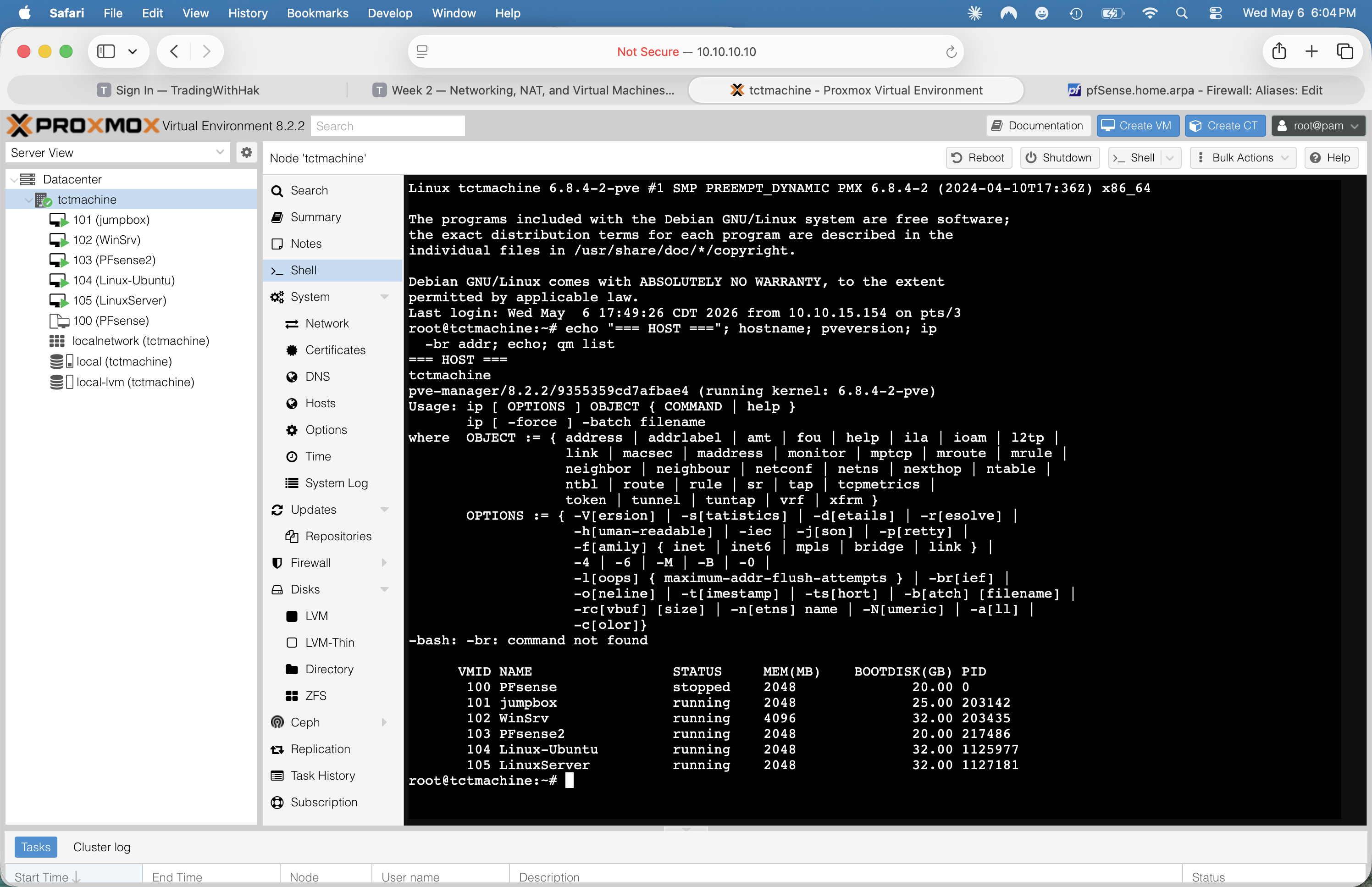
ip -br addr

Both bridges are bridge_ports none — they're VM-only switches, no physical NIC backing.

Verified live

qm list showing all 6 VMs and bridge config

Fig 01 · qm list + pveversion · all 6 VMs accounted for after build

Step 2🛡️ Networking · pfSense

Install pfSense2 — three NICs, three subnets

VM creation (Proxmox UI)

  1. Create VM → name PFsense2 (VMID 103) · 2 vCPU · 2 GB RAM · 20 GB disk
  2. Add three virtio NICs:
    • net0vmbr0 (WAN side)
    • net1vmbr1 (DMZ)
    • net2vmbr2 (LAN)
  3. Mount netgate-installer-v1.1.1-RELEASE-amd64.iso on ide2
  4. Boot · run installer → all defaults · accept ZFS or UFS as preferred

Console interface assignments

After install, at the blue menu:
option 2 → Set interface(s) IP address
WAN  vtnet0 → DHCP from school LAN
DMZ  vtnet1 → 172.16.0.1/24
LAN  vtnet2 → 192.168.0.1/24

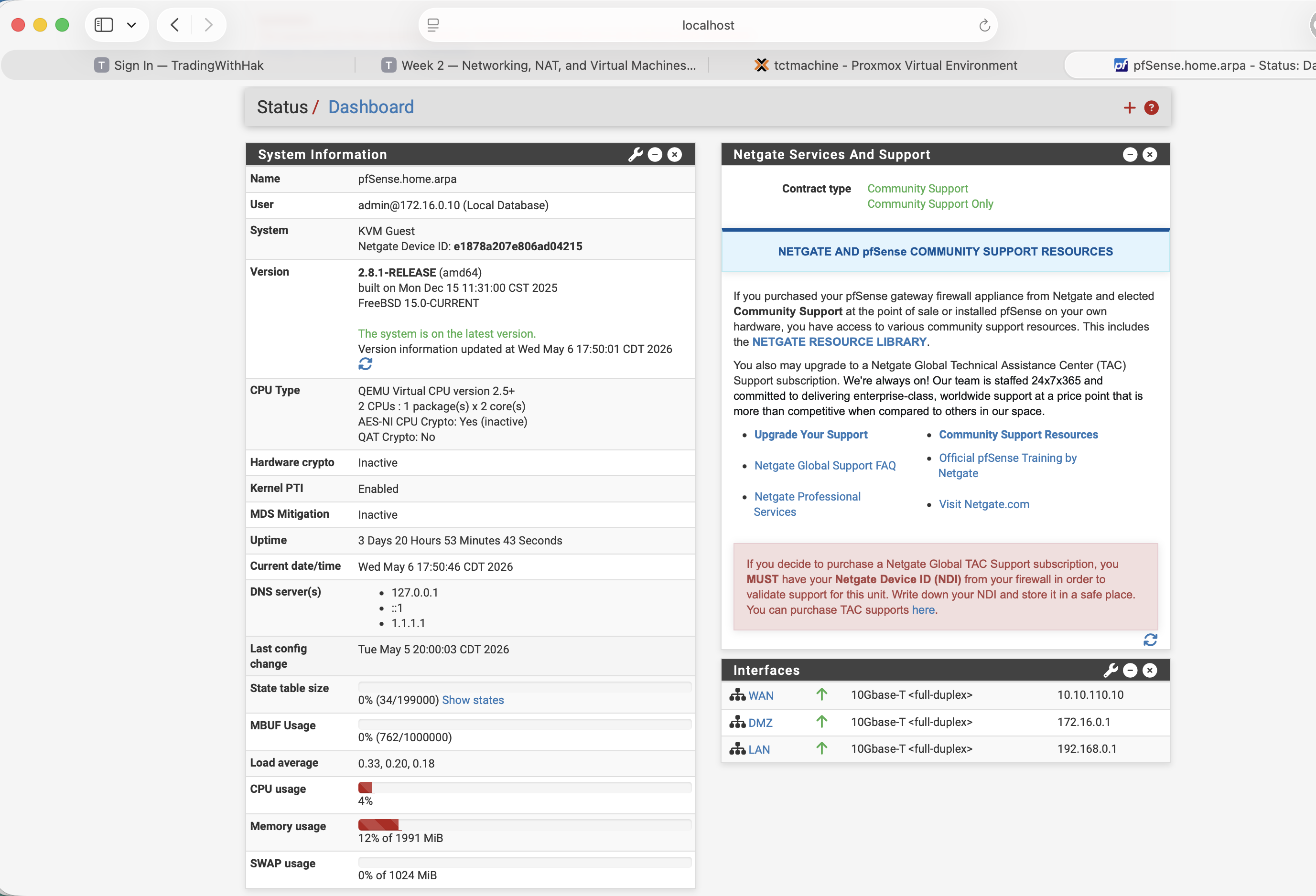
Verified live

pfSense web UI dashboard showing System Information and Interfaces panel

Fig 09 · pfSense dashboard · WAN 10.10.110.10 · DMZ .1 · LAN .1

Step 3🛡️ pfSense services

Turn on DHCP + DNS Resolver

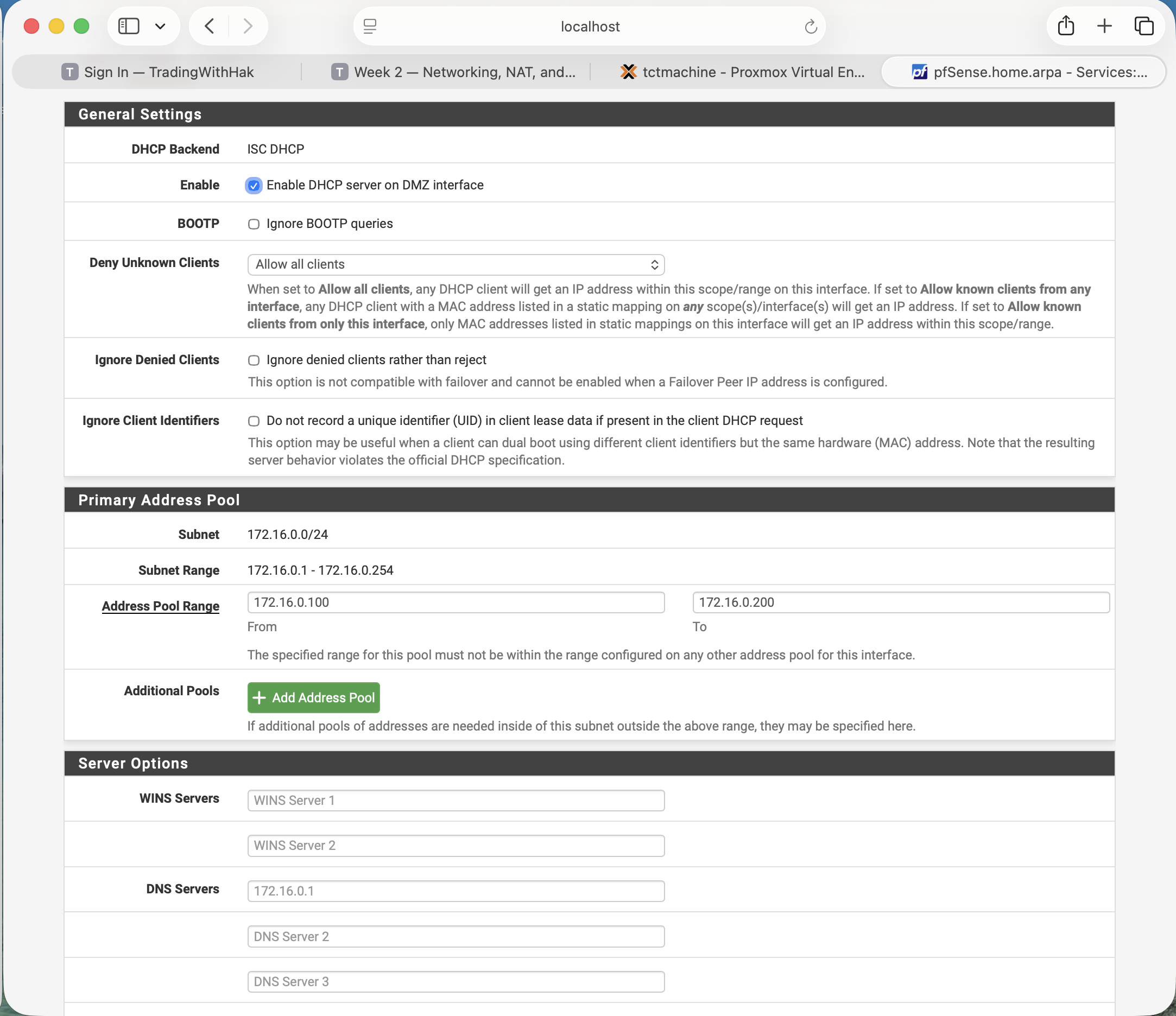
DHCP — Services → DHCP Server

  1. Click DMZ tab → ✓ Enable DHCP server on DMZ
  2. Pool: 172.16.0.100172.16.0.200
  3. DNS server pushed to clients: 172.16.0.1 (pfSense)
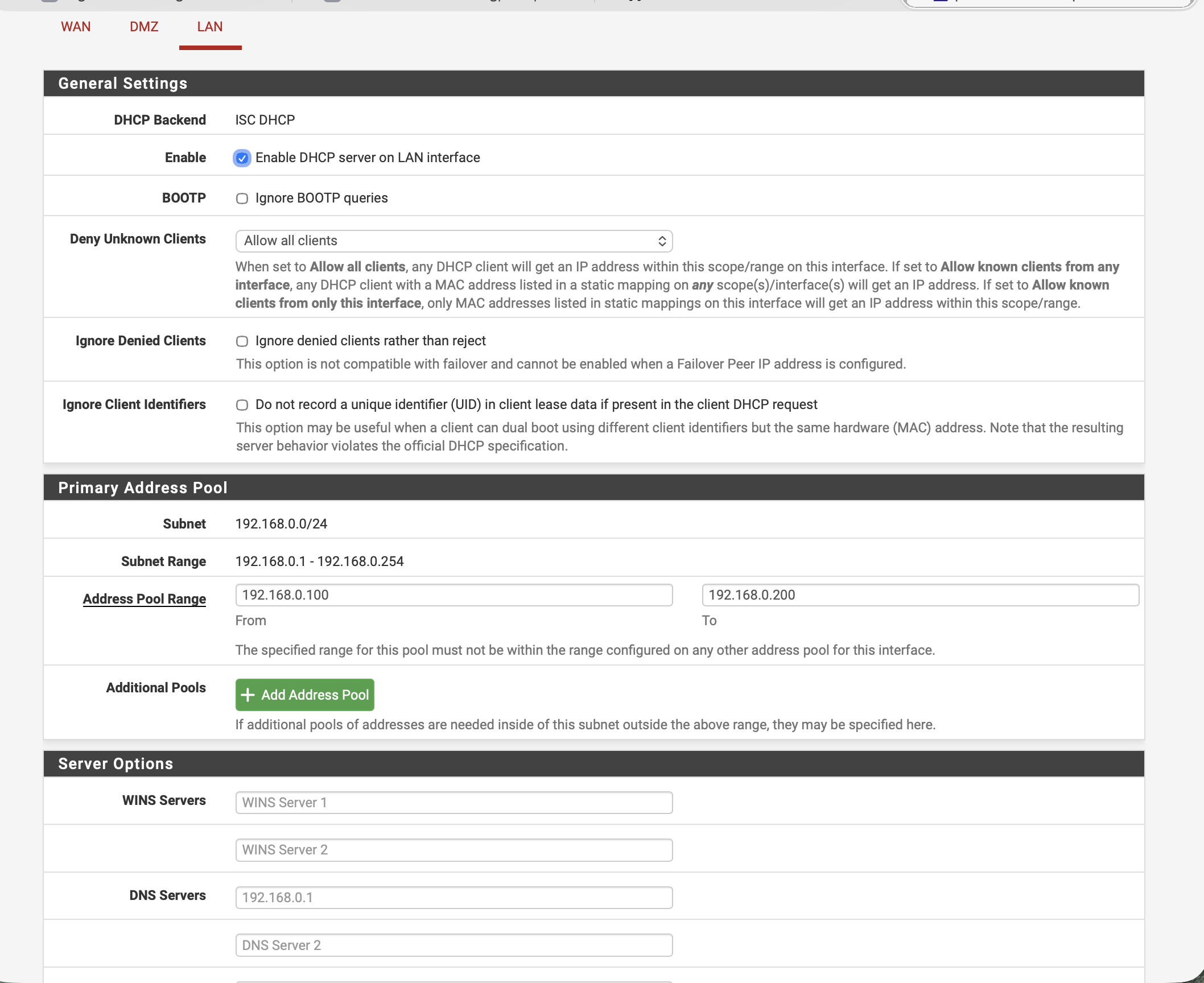
  4. Repeat on LAN tab: 192.168.0.100192.168.0.200, DNS 192.168.0.1
  5. Save + Apply

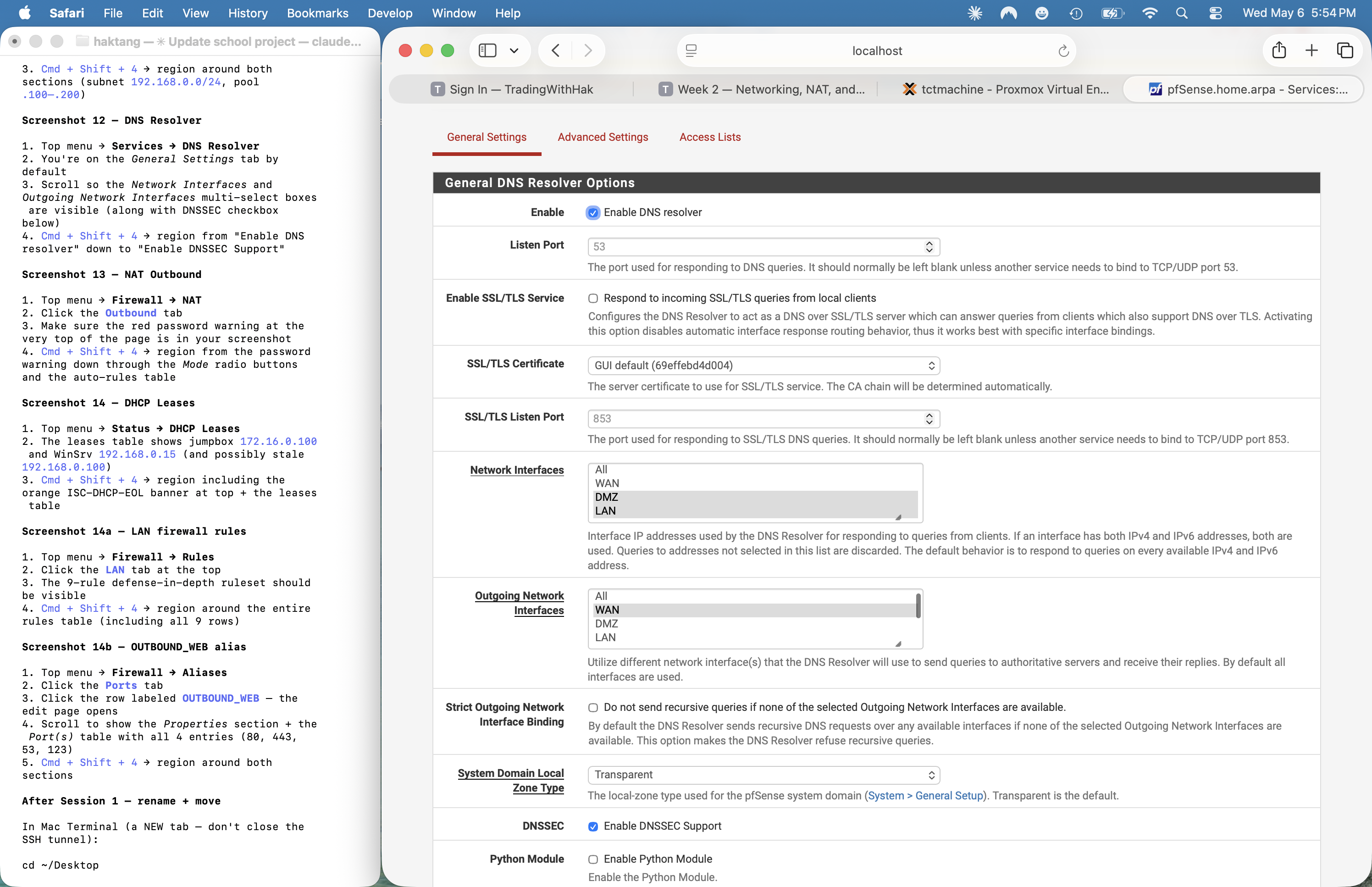
DNS — Services → DNS Resolver

  1. ✓ Enable DNS resolver
  2. Network Interfaces: DMZ + LAN (NOT WAN)
  3. Outgoing Network Interfaces: WAN
  4. ✓ Enable DNSSEC Support
  5. Save + Apply

NAT — Firewall → NAT → Outbound

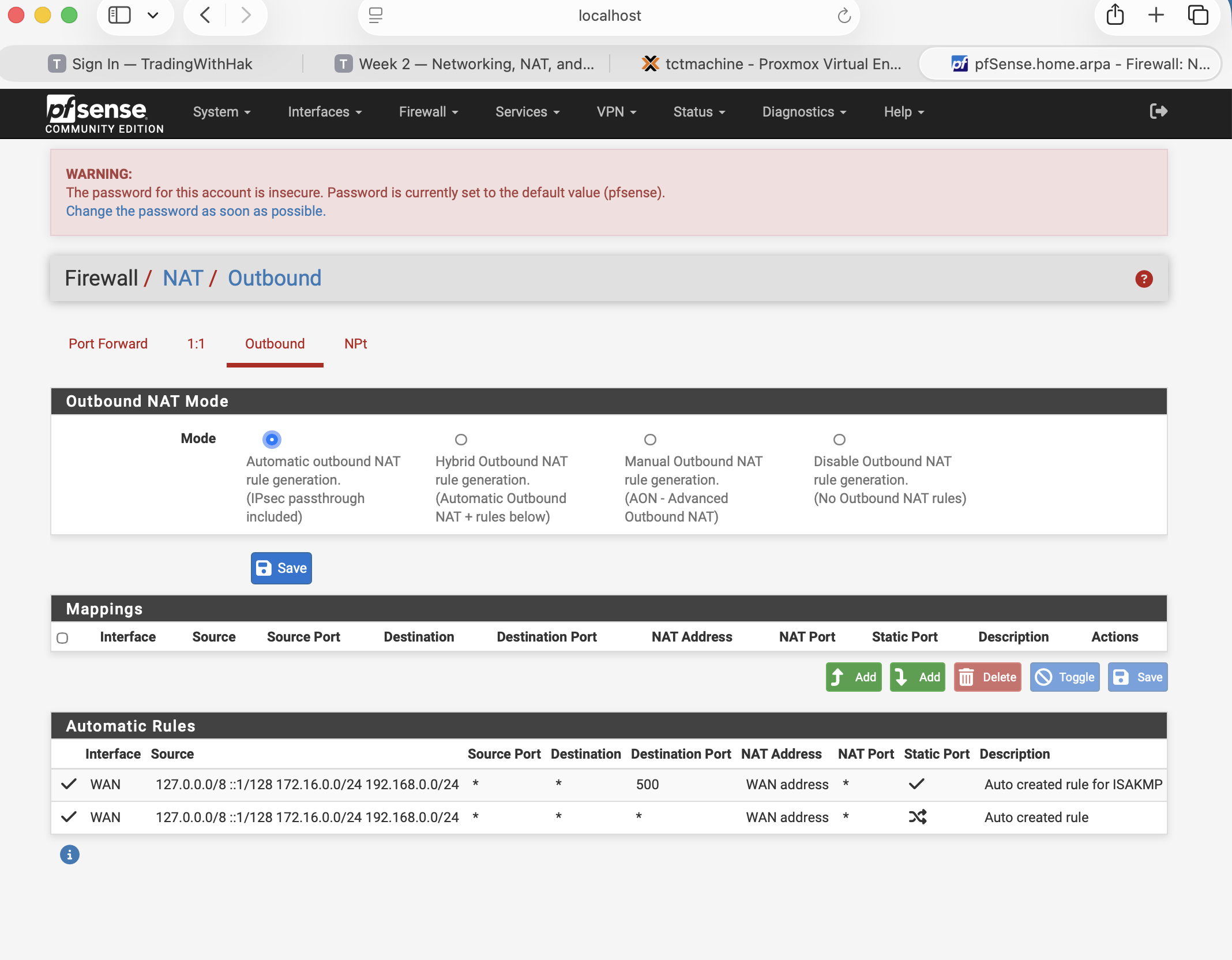
Mode: Automatic outbound NAT — pfSense auto-MASQUERADEs both internal subnets out the WAN address.

Verified live

DMZ DHCP scope LAN DHCP scope

Fig 10 + 11 · DMZ + LAN scopes (172.16/24 and 192.168/24, both .100–.200)

DNS Resolver settings NAT Outbound settings

Fig 12 + 13 · DNS Resolver (DNSSEC on) + NAT Outbound (Automatic mode)

Step 4🛡️ Defense in depth

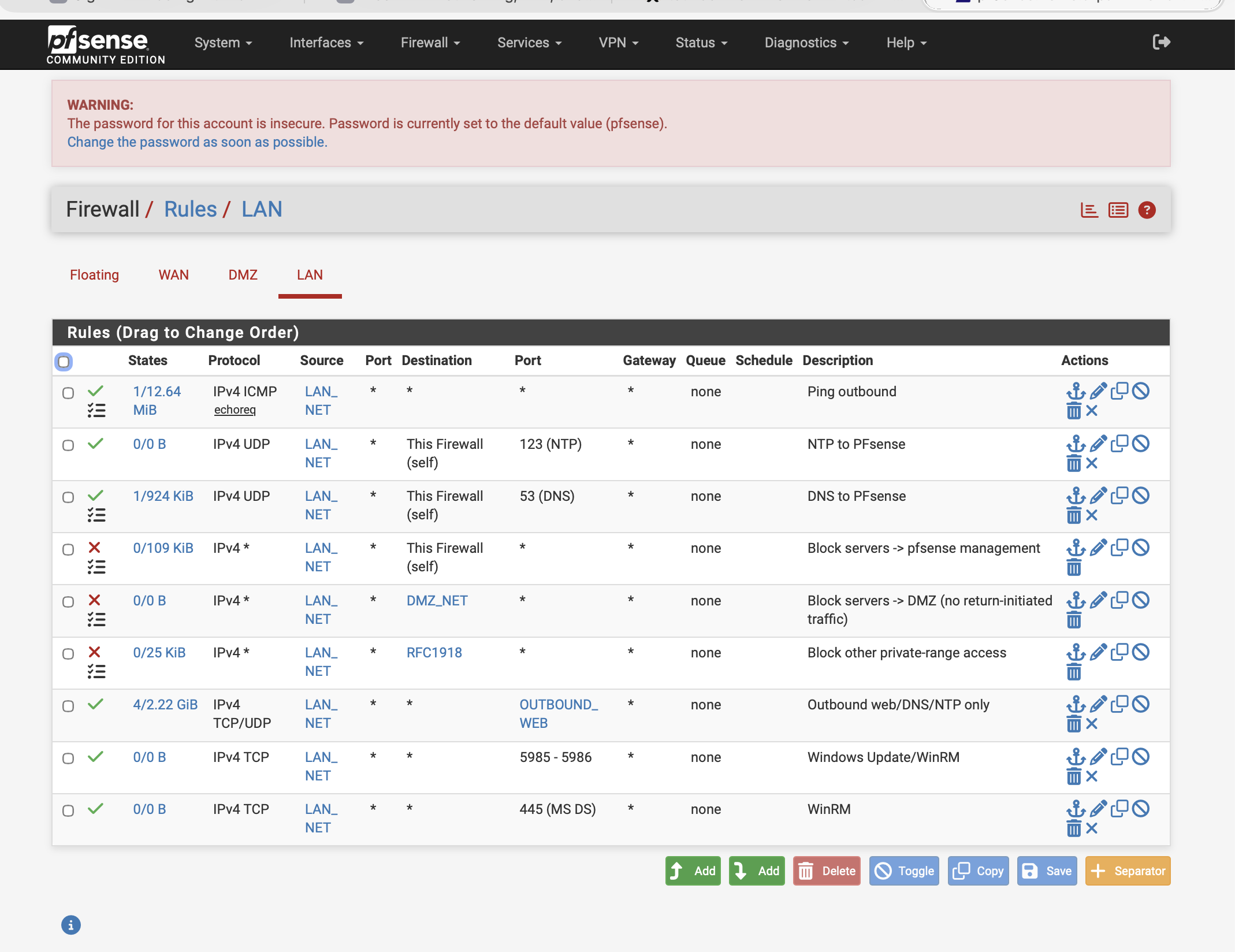
Lock down LAN — 9-rule firewall

Firewall → Rules → LAN tab

Order matters. Top-down, first match wins. Add rules in this exact order:

#ActionSource → DestDescription
1PASSLAN → This Firewall (ICMP)Ping gateway only
2PASSLAN → This Firewall (UDP/123)NTP local
3PASSLAN → This Firewall (UDP/53)DNS local
4BLOCKLAN → This Firewall (any)No mgmt
5BLOCKLAN → DMZ_NETNo DMZ pivot
6BLOCKLAN → RFC1918No lateral
7PASSLAN → OUTBOUND_WEBWeb/DNS/NTP only
8PASSLAN → 5985–5986WinRM
9PASSLAN → 445SMB

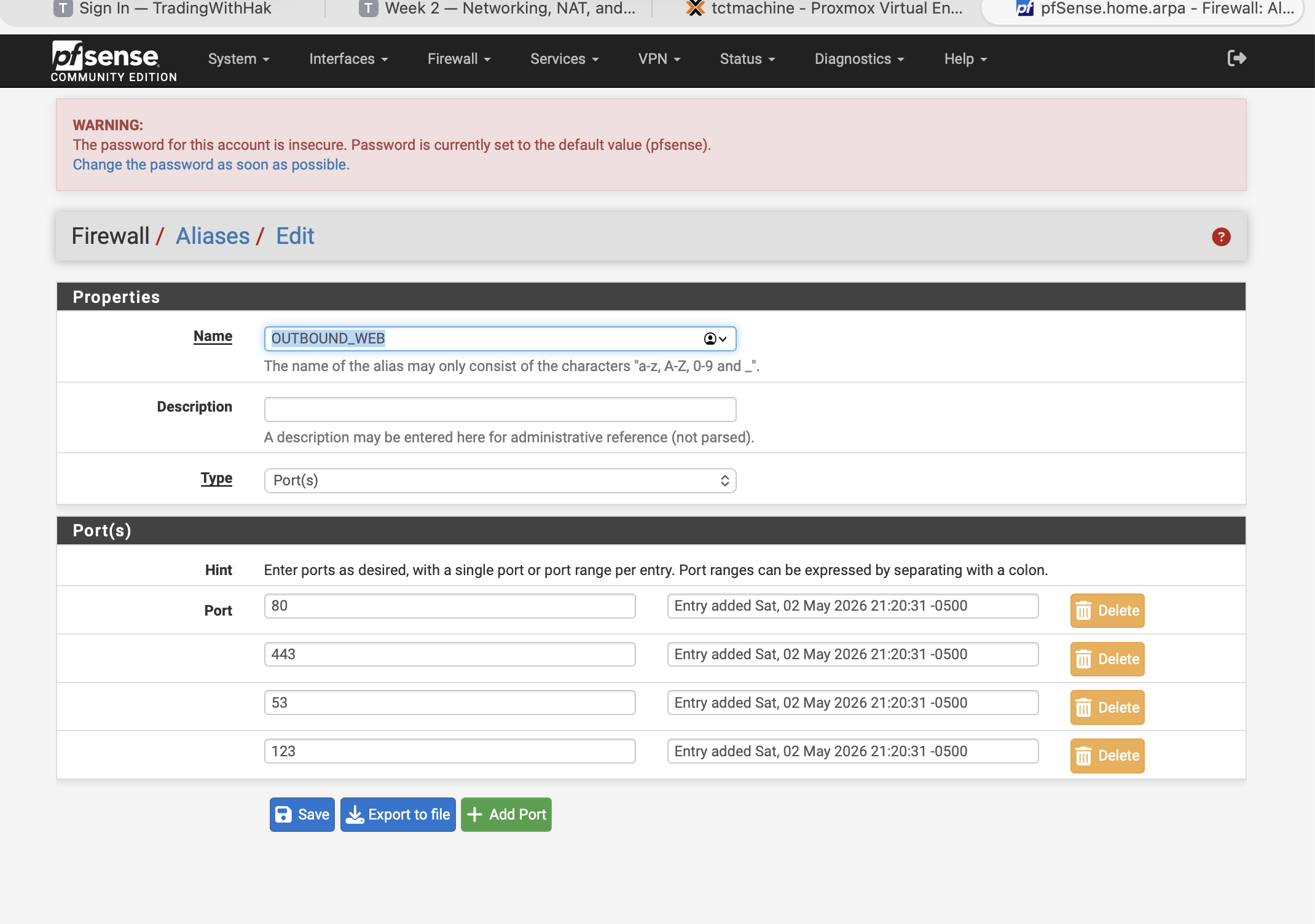
Aliases needed: OUTBOUND_WEB = ports {80, 443, 53, 123} · RFC1918 = standard 10/8 + 172.16/12 + 192.168/16 · DMZ_NET = 172.16.0.0/24.

Verified live

pfSense LAN firewall rules — 9 rules visible

Fig 14a · LAN ruleset · all 9 rules in order

OUTBOUND_WEB alias contents

Fig 14b · OUTBOUND_WEB = {80, 443, 53, 123}

Step 5💻 DMZ entry point

Install + harden the Jumpbox (VM 101)

Install Ubuntu Server 26.04

  1. Create VM 101 · 2 vCPU · 2 GB RAM · 25 GB disk · NIC on vmbr1
  2. Mount Ubuntu Server live ISO · boot · install with default partitioning
  3. Set hostname (e.g. jumpbox) · admin user tct_jumpbox
  4. ✓ Install OpenSSH server · skip snaps
  5. Reboot · log in

Configure UFW

sudo ufw default deny incoming
sudo ufw default allow outgoing
sudo ufw allow from 10.10.10.0/24 to any port 22
sudo ufw allow from 192.168.0.0/24 to any port 22
sudo ufw allow from 172.16.0.0/24 to any port 22
sudo ufw enable
sudo ufw status verbose

Harden sshd (later)

Edit /etc/ssh/sshd_config · change Port 2222 · PermitRootLogin no · PasswordAuthentication no after key auth · AllowUsers tct_jumpbox

Verified live

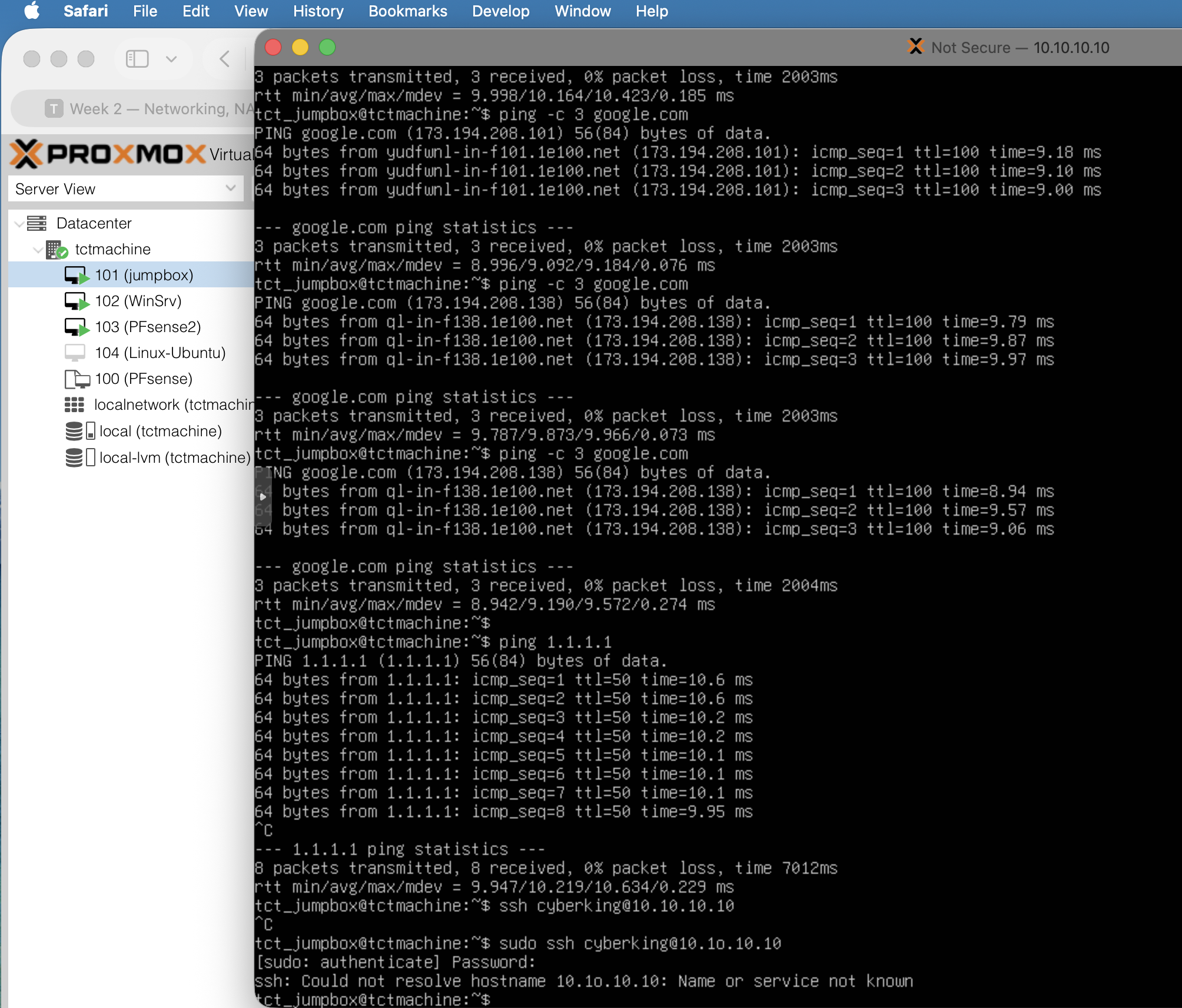
jumpbox ping success

Fig 06 · ping google.com + 1.1.1.1 · 0% loss

jumpbox network + UFW

Fig 07 · hostnamectl + ip + UFW status

Step 6🪟 LAN · WinSrv

Install WinSrv 2025 + static IP .15

Install Win Srv 2025 Datacenter Eval

  1. Create VM 102 · UEFI BIOS (OVMF) · 4 GB RAM · 32 GB disk · 2 vCPU
  2. NIC: e1000 on vmbr2 · ✓ Proxmox firewall
  3. Mount Win Srv 2025 EVAL ISO · boot · run installer
  4. Pick Datacenter Evaluation (Desktop Experience)
  5. Custom partition: use the full disk · install (~10 min)
  6. Set Administrator password · sign in
  7. Server Manager opens automatically

Set static IP (GUI path)

  1. Win + Rncpa.cpl → Network Connections
  2. Right-click Ethernet → Properties
  3. Double-click Internet Protocol Version 4 (TCP/IPv4)
  4. Use the following IP address:
    • IP: 192.168.0.15
    • Mask: 255.255.255.0
    • Gateway: 192.168.0.1
    • DNS: 192.168.0.1
  5. OK · OK · close

Verified live

ipconfig /all on WinSrv

Fig 16 · ipconfig /all · IPv4 192.168.0.15(Preferred) · DHCP No

WinSrv About page

Fig 17 · Settings · Win Srv 2025 Eval · 24H2 · installed 4/27/2026

Step 7🐧 LAN · Linux services host

Install LinuxServer + static IP .20

Install Ubuntu Server

  1. Create VM 105 · 2 vCPU · 2 GB RAM · 32 GB disk · virtio NIC on vmbr2
  2. Mount Ubuntu Server live ISO · boot · run subiquity installer
  3. Network step: edit ens18 IPv4 → Manual:
    • Subnet: 192.168.0.0/24
    • Address: 192.168.0.20
    • Gateway: 192.168.0.1
    • Name servers: 192.168.0.1
  4. Default proxy + mirror · Use entire disk (LVM default)
  5. Profile: hostname linuxserver · admin user · password
  6. ✓ Install OpenSSH server · skip snaps
  7. Wait for install · Reboot now

⚠ Detach ISO before reboot

Proxmox UI → VM 105 → Hardware → CD/DVD Drive → Edit → "Do not use any media" → OK. Otherwise the VM loops back into the installer.

Post-boot

sudo systemctl enable ssh
# confirm static .20 took effect:
ip -br addr
ping -c 2 192.168.0.1

Verified live

LinuxServer first-boot verification

Fig 22 · hostnamectl tctlinuxserver · Ubuntu 26.04 · static 192.168.0.20 · sshd active

Build setup complete

What's verified, what's next

✅ Build verified (2026-05-06)

  • Bridges vmbr0/1/2 · all UP · correct IPs
  • pfSense2 routing all traffic · NAT auto · DHCP both subnets · DNSSEC on
  • 9-rule LAN firewall enforcing defense-in-depth
  • Jumpbox · UFW configured · internet via pfSense
  • WinSrv at static 192.168.0.15 · DHCP No · DNS pfSense
  • LinuxServer at static 192.168.0.20 · sshd active
  • 21 of 25 verification screenshots captured

📋 What's next — Phase 1 services

  • Disable pfSense LAN DHCP (avoid conflict with Win DHCP role)
  • WinSrv: Time zone Pacific → Central · Windows Updates
  • WinSrv: Install AD-DS · DNS · DHCP · IIS roles
  • LinuxServer: NGINX · MariaDB · NTP · UFW
  • VM 104: Install Ubuntu Desktop · static .25 · Firefox client testing
  • 🚨 Critical: change pfSense admin password (still default pfsense)

The next slides walk through the service installs, in order.

Phase 0Networking Specialist

Verify NAT bridge & Jump Box

Ping matrix — three zones

From → ToRecord
Proxmox host → pfSense2 (DMZ)______ ms
Proxmox host → Jumpbox (DMZ)______ ms
Proxmox host → WinSrv (LAN)______ ms
Proxmox host → LinuxServer (LAN)______ ms
# from the Proxmox host shell:
ping -c 4 172.16.0.1     # pfSense DMZ
ping -c 4 172.16.0.100   # Jumpbox
ping -c 4 192.168.0.15   # WinSrv
ping -c 4 192.168.0.20   # LinuxServer

Outbound through pfSense (NAT proof)

From WinSrv cmd:

curl -v -m 5 https://www.microsoft.com
expect HTTP 200 in <1 s

From LinuxServer bash:

curl -s https://ifconfig.me
→ returns the school's public IP

If outbound fails: check VM gateway = 192.168.0.1 (pfSense LAN), pfSense's Firewall → NAT → Outbound shows Mode = Automatic, and the LAN allow rule at Firewall → Rules → LAN permits the destination port.

ping 1.1.1.1 from LAN won't reach the internet — by design, the LAN firewall only allows ICMP echoreq to the gateway. Use curl against an OUTBOUND_WEB-listed port (80/443/53/123) instead.

Phase 0Gateway & DNS Verification

Fill this table in the report

VMGatewayVM IPDNS ServerWorking? (Y/N)
WinSrv (LAN)192.168.0.1192.168.0.15192.168.0.1 (pfSense)___
LinuxServer (LAN)192.168.0.1192.168.0.20192.168.0.1 (pfSense)___
Jumpbox (DMZ)172.16.0.1172.16.0.100172.16.0.1 (pfSense)___

Check gateway / DNS on Windows

ipconfig /all
look for:
  Default Gateway . . : 192.168.0.1
  DNS Servers . . . . : 192.168.0.1

Check gateway / DNS on Linux

ip route | grep default
default via 192.168.0.1 dev ens18

resolvectl status | grep "DNS Servers"
DNS Servers: 192.168.0.1

📸 Screenshot ipconfig /all and ip route + resolv.conf for the report.

Phase 1🪟 Windows Specialist · DNS

Install the DNS Server role

Add the role

  1. 1Open Server Manager
  2. 2Manage → Add Roles and Features
  3. 3Role-based → This server → check DNS Server
  4. 4Click through → Install · wait ~2 min

Create the forward lookup zone

  1. 5Tools → DNS → open DNS Manager
  2. 6Expand the server → right-click Forward Lookup ZonesNew Zone
  3. 7Zone type: Primary zone
  4. 8Zone name: teamx.local (replace x with your team letter/number)
  5. 9Accept default file name · allow only secure dynamic updates · Finish

Add the A record

  1. Right-click your new zone → New Host (A or AAAA)
  2. Name: winserver
  3. IP address: 192.168.0.15
  4. Check "Create associated pointer (PTR) record"
  5. Add Host → Done

Verify from cmd on the server

nslookup winserver.teamx.local
Server:  localhost
Address: 127.0.0.1

Name:    winserver.teamx.local
Address: 192.168.0.15

📸 Screenshot the DNS Manager tree showing the zone + A record, and the nslookup output.

Phase 1🪟 Windows Specialist · DHCP

Install DHCP and create the scope

Two DHCPs would fight. pfSense2 currently leases .100–.200 on the LAN. Before activating Windows DHCP, go to pfSense → Services → DHCP Server → LAN → uncheck "Enable DHCP server on LAN" + Save + Apply. Then Windows owns the scope.

Install the role

  1. Server Manager → Add Roles and Features → check DHCP Server
  2. Install → Complete DHCP Configuration wizard → Commit
  3. Tools → DHCP → open DHCP manager
  4. Right-click IPv4 → New Scope

Scope values

NameCapstoneScope
Start IP192.168.0.100
End IP192.168.0.200
Subnet Mask255.255.255.0
Default Gateway192.168.0.1
DNS Server192.168.0.15 WinSrv (your DNS)
DNS suffixteamx.local
Lease duration8 days (default)

Activate & test

  • Right-click the scope → Activate
  • Right-click server node → Authorize (if prompted)
  • On a client VM (Win 10/Ubuntu/Kali), set NIC to DHCP
  • Release + renew — client should pull an IP in .10–.100

Verify from the client

Windows client:
ipconfig /release
ipconfig /renew
ipconfig /all

Linux client:
sudo dhclient -r && sudo dhclient
ip -4 addr

📸 Screenshot the DHCP Manager scope + Address Leases panel showing at least 1 active lease.

Phase 1🪟 Windows Specialist · IIS

Install IIS and deploy the welcome page

Install the role

  1. Server Manager → Add Roles and Features
  2. Check Web Server (IIS) → Next → accept feature defaults
  3. Install → wait ~2 min

Create the welcome page

  1. File Explorer → C:\inetpub\wwwroot\
  2. Delete the default iisstart.htm + iisstart.png
  3. Right-click → New → Text Document
  4. Paste in the HTML (right →)
  5. Save As… → change "Save as type" to All Files → filename index.html

Welcome page content

<html>
  <body>
    <h1>Welcome to Week 2!</h1>
  </body>
</html>

Test from a client VM

Browser:
http://192.168.0.15

Or by hostname (DNS working):
http://winserver.teamx.local

You should see Welcome to Week 2! rendered as an H1.

📸 Screenshot the browser showing the welcome page — URL bar visible.

Phase 2🐧 Linux Specialist · NGINX

Install NGINX and publish a page

Install & enable

sudo apt update
sudo apt install nginx -y

sudo systemctl enable nginx
sudo systemctl start nginx

sudo systemctl status nginx
● nginx.service - A high performance web server
   Active: active (running)

Deploy the welcome page

echo "<h1>Welcome to Linux Week 2</h1>" \
  | sudo tee /var/www/html/index.html

# confirm file:
cat /var/www/html/index.html
<h1>Welcome to Linux Week 2</h1>

Test from another VM

Browser on Windows / Jump Box:
http://192.168.0.20

📸 Screenshot the browser with URL + rendered heading.

If it fails, check: sudo ufw status (allow port 80 if firewall up), NIC IP is actually .3, and gateway is .1.

Phase 2🐧 Linux Specialist · Database

Install MariaDB and create the capstone DB

Install & start

sudo apt install mariadb-server -y
sudo systemctl enable mariadb
sudo systemctl start mariadb

sudo mysql
MariaDB [(none)]>

Optional but recommended: sudo mysql_secure_installation — set root password, remove anon users & test DB.

Create DB + user + grants

CREATE DATABASE capstone_db;

CREATE USER 'capuser'@'localhost'
  IDENTIFIED BY 'securepass';

GRANT ALL PRIVILEGES ON capstone_db.*
  TO 'capuser'@'localhost';

FLUSH PRIVILEGES;
EXIT;

Verify from the shell

mysql -u capuser -p -e "SHOW DATABASES;"
password: securepass
+--------------------+
| Database           |
+--------------------+
| capstone_db        |
| information_schema |
+--------------------+

📸 Screenshot the SHOW DATABASES; output with capstone_db listed.

Phase 3🌐 Networking Specialist

Cross-VM connectivity & DNS tests

Ping both directions

From → ToLatency
Win → Linux___ ms
Linux → Win___ ms
Win cmd:
ping 192.168.0.20

Linux bash:
ping -c 4 192.168.0.15

DNS lookup

Linux terminal:
nslookup winserver.teamx.local
Server:  192.168.0.15
Address: 192.168.0.15#53

Name:    winserver.teamx.local
Address: 192.168.0.15

If this fails but ping 192.168.0.15 works, the client is still pointed at pfSense (192.168.0.1) for DNS — switch its DNS to the WinSrv address (192.168.0.15) so it queries your zone, then re-test.

DHCP lease check

Spin up a fresh Windows 10/Kali/Ubuntu VM on vmbr1 → set NIC to DHCP.

Record the leased IP:
ipconfig /all | findstr IPv4
IPv4 Address . . . . : 192.168.0.101

📸 Screenshot the DHCP Address Leases on the Windows server showing the client's MAC & IP.

For the Report

Test Summary Table

TestExpectedActualPass / FailScreenshot
Ping Proxmox host → Jump Box< 5 ms___ ms
Ping Jump Box → Win VM< 5 ms___ ms
Ping Jump Box → Linux VM< 5 ms___ ms
Win VM ping 8.8.8.8< 30 ms___ ms
Linux VM curl ifconfig.meSchool public IP_________
nslookup winserver.teamx.local192.168.0.15_________
DHCP lease issued to clientIP in .10–.100 range_________
Browse http://192.168.0.15"Welcome to Week 2!"rendered Y/N
Browse http://192.168.0.20"Welcome to Linux Week 2"rendered Y/N
SHOW DATABASES; via capusercapstone_db listed_________
Deliverables

What to hand in

📄 Week 2 Report (PDF or Word)

  • Cover page — week #, team name, all 4 roles + names
  • NAT bridge + connectivity proof — Phase 0 tables filled
  • Ping & internet test results
  • 5 mandatory screenshots (see right)
  • Test summary table — all rows filled, Pass/Fail marked
  • Reflections — 1–2 sentences each:
    • Which test was tricky?
    • Which service took longest / was hardest?
    • Any NAT or network issues unresolved?

📸 Required screenshots

  1. DNS zone + A record in DNS Manager (tree view)
  2. DHCP scope + leases (at least 1 active lease visible)
  3. IIS page rendered in a browser (URL bar visible)
  4. NGINX page rendered in a browser (URL bar visible)
  5. DB CLI querySHOW DATABASES; showing capstone_db

📊 Team Lead — asset tracker

  • Add every VM (Win / Linux / Jump / any clients) as a row
  • Columns: name, role, bridge, IP, MAC, OS, vCPU/RAM/disk
  • Export the Hardware + Software tabs → include in report
Troubleshooting

When things don't work

Can't ping between VMs

  • Both VMs on the same bridge (vmbr1)?
  • Windows Firewall blocking ICMP? (Allow "File and Printer Sharing (Echo Request)")
  • Linux ufw up? → sudo ufw allow from 192.168.0.0/24
  • VM has a 192.168.0.x IP? (ipconfig/ip a)

No internet from VMs

  • Host IP forwarding on? sysctl net.ipv4.ip_forward should say 1
  • MASQUERADE iptables rule? iptables -t nat -L POSTROUTING -n -v
  • VM gateway set to 192.168.0.1?
  • VM DNS reachable (8.8.8.8 pingable from host)?

nslookup returns NXDOMAIN

  • Client DNS = 192.168.0.15 (your Win server)?
  • DNS zone actually created + has A record?
  • Using FQDN winserver.teamx.local not just winserver?
  • DNS service running? Services.msc → "DNS Server" → Running

IIS/NGINX: browser can't connect

  • Service running? (services.msc or systemctl status)
  • Port 80 open on the VM's firewall?
  • Trying HTTP not HTTPS? (no cert installed yet)
  • Correct IP? telnet <ip> 80 to confirm listening

MariaDB access denied

  • User created as 'capuser'@'localhost'? Remote clients need 'capuser'@'%'
  • Ran FLUSH PRIVILEGES; after GRANT?
  • Password typed exactly (securepass)?
  • Remote connection? — open 3306 in firewall, change bind-address in /etc/mysql/mariadb.conf.d/50-server.cnf

DHCP not leasing

  • Scope Activated? (right-click scope)
  • DHCP server Authorized in AD? (n/a if no AD yet — skip prompt)
  • Client actually set to DHCP not static?
  • Broadcast reaching server? (same bridge, no VLAN filter)
You've got this

Go build.

Phase 0 → 1 → 2 → 3 · screenshot everything · fill the tables

🌐 NAT + Jump 🪟 DNS · DHCP · IIS 🐧 NGINX · MariaDB 🔬 Cross-VM tests

Questions? Back to the retrospective or main guide.

All Slides

1 / 16